Online Pie Chart Tool
Online pie chart tool. A pie chart shows how a whole breaks down into parts, with each slice sized proportionally to its share. Export as SVG, PNG, or Mermaid…
Sign up free — get 3 AI generations on the house.
Generate with AI — FreeExample outputs
Real diagrams our AI has produced from prompts like this one.
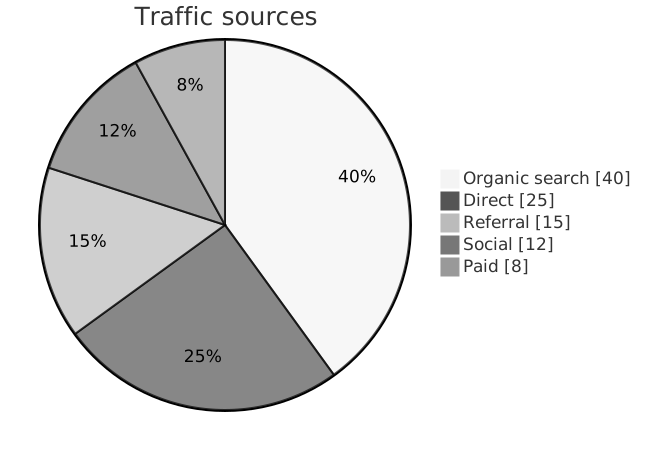
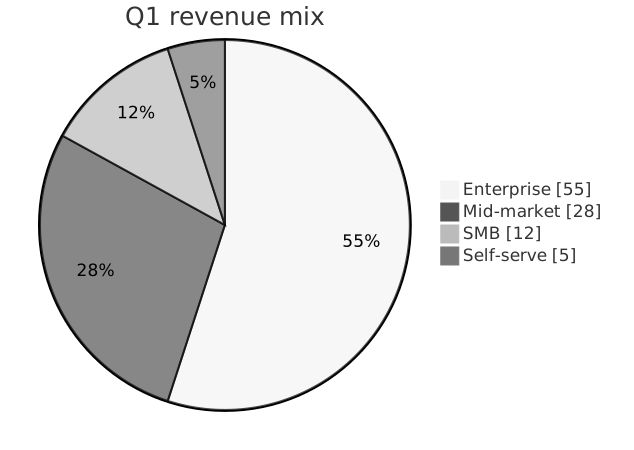
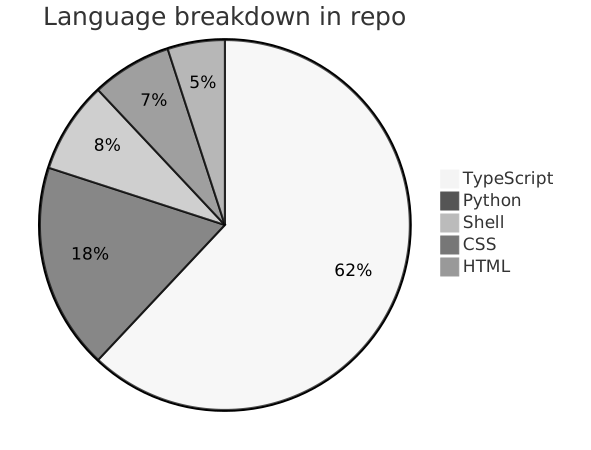
Online Pie Chart Tool turns a plain-English description into a pie chart you can export, share, or drop straight into your docs. No drawing tools, no syntax cheat-sheets — just describe what you need and get a clean Mermaid-compatible diagram back.
What is a pie chart?
A pie chart shows how a whole breaks down into parts, with each slice sized proportionally to its share. It is the fastest way to communicate a composition — market share, budget allocation, traffic source mix — when there are only a handful of categories.
Pie charts work best when there are 2 to 6 slices and one or two of them dominate. Past that, a bar chart or donut chart is usually easier to read; for a small number of categories with clear proportions, a pie chart still wins.
Who uses pie charts?
- Analysts and data teams reporting composition and share
- Founders presenting revenue mix or customer-segment breakdowns
- Marketing teams showing channel attribution in dashboards
- Engineering leads reporting error-category breakdowns
- Finance teams explaining budget allocation
- Sales leaders visualising pipeline by stage or region
- Operations leads tracking ticket categories in QBRs
- Students and educators introducing categorical data
Why generate pie charts with AI?
For a quick pie chart in a doc or slide, spinning up Excel, Google Sheets, or Chart.js is overkill. Mermaid renders pie charts from four lines of text, which is perfect for README sprinkles, internal tickets, and hand-authored reports.
Generating the Mermaid source from a natural-language description ("40 percent from organic search, 30 percent from referrals...") means you never touch the syntax. You describe the breakdown; the tool produces the chart.
How to use the Online Pie Chart Tool
- Describe the categories and their values (percentages or raw numbers both work).
- Paste the description into the Online Pie Chart Tool prompt box and click Generate.
- Review the chart; request tweaks like "merge Other and Unknown" or "express values as percentages".
- Export as SVG, PNG, or Mermaid source for your report, slide deck, or README.
- Save it to your workspace so you can update the slices when the numbers change.
FAQ
What's the maximum number of slices?
Mermaid has no hard cap, but pie charts get unreadable past 6-7 slices. If you have more categories, consider grouping small values into an "Other" slice or switching to a bar chart.
Do values have to sum to 100?
No — Mermaid normalises values into percentages automatically. Raw counts work as well as percentages.
Can I customise colours?
Mermaid pie charts use the theme's palette. You can change the overall theme (default, dark, forest, neutral) in the export options; per-slice colours need a post-export edit in SVG.
Create your own with Online Pie Chart Tool — free
Sign up and get 3 AI generations on the house. Export to SVG, PNG, or share a public link.
Related AI diagram tools
Try another free generator from FlowCraft.
- Open tool
AI Pie Chart Generator
AI pie chart generator. A pie chart shows how a whole breaks down into parts, with each slice sized proportionally to its share. Export as SVG, PNG, or Mermaid…
- Open tool
AI Pie Chart Maker
AI pie chart maker. A pie chart shows how a whole breaks down into parts, with each slice sized proportionally to its share. Export as SVG, PNG, or Mermaid…
- Open tool
Free Pie Chart Maker
Free pie chart maker. A pie chart shows how a whole breaks down into parts, with each slice sized proportionally to its share. Export as SVG, PNG, or Mermaid…
- Open tool
AI Class Diagram Generator
Create UML class diagrams from plain English with AI. Free online class diagram generator with Mermaid-compatible output and SVG or PNG export.